

How do I reset my Minecraft server world?
18 February 2026
Sometimes it’s time for a fresh start in Minecraft. Maybe all resources are depleted, or you simply want to start a new adventure with friends. In this tutorial, we’ll guide you step by step on how to reset your Minecraft world.
Important before you start
First, check which server software you are using, as the file structure can differ:
On Vanilla servers, the world is stored by default in the world folder (with subfolders like
DIM-1for the Nether andDIM1for The End).Spigot and Paper servers store worlds in multiple folders, such as
world,world_nether, andworld_the_end.
If you use a plugin like Multiverse, the world names may be different.
🚨 Warning: Resetting your Minecraft server world will delete all data. This cannot be undone. Make a backup first if you want to keep anything.
Resetting the world on a Vanilla server
Go to the control panel and click on the server whose world you want to reset.
Stop the server by clicking Stop.

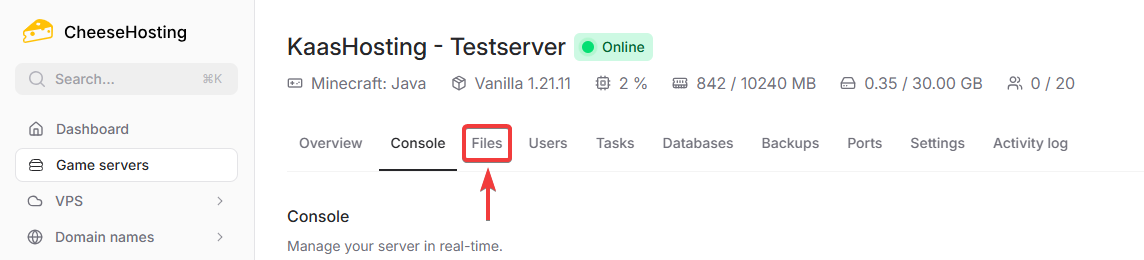
Click on Files.
Delete the
worldfolder to reset all worlds. If you only want to reset one dimension, delete only the subfolders:data(Overworld),DIM-1(Nether), orDIM1(The End).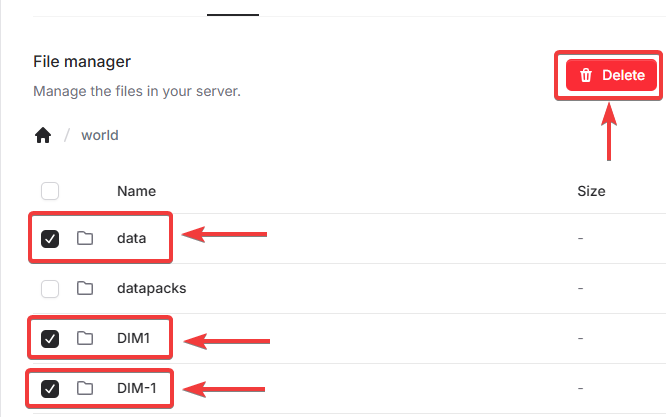
Start your server again by clicking Start.
Done! The server will now automatically generate a new world.
Resetting the world on a Spigot/Paper server
Go to the control panel and click on the server whose world you want to reset.
Stop the server by clicking Stop.

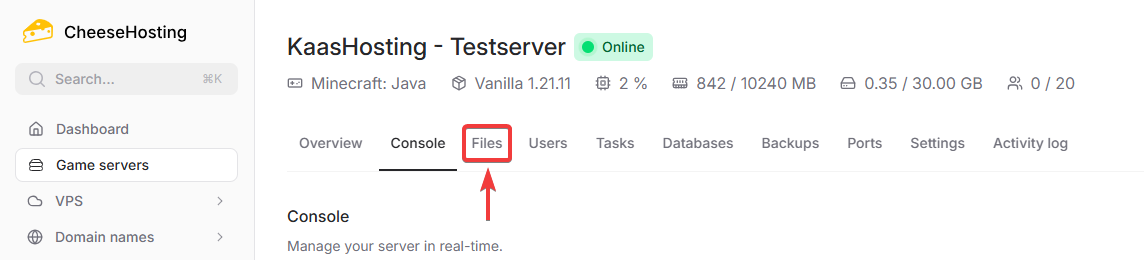
Click on Files.
Delete the folders
world,world_nether, andworld_the_endto reset all worlds. If you only want to reset one dimension, delete onlyworld(Overworld),world_nether(Nether), orworld_the_end(The End).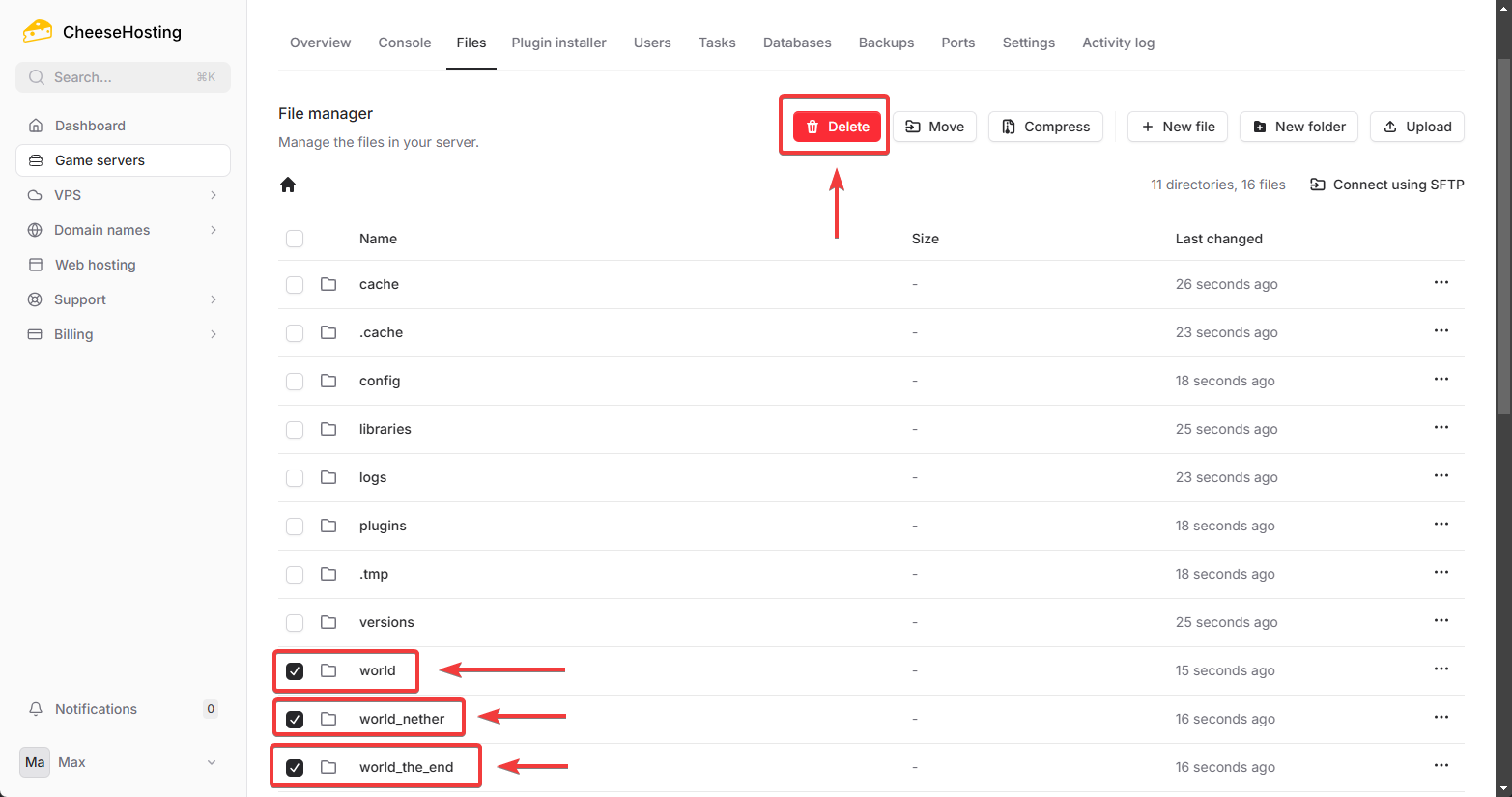
Start your server again by clicking Start.
Done! The server will now automatically generate a new world.
Want to know how to change your world’s seed?
👉 Click here for instructions on changing the seed.