

How do I get OP permissions on a Minecraft server?
26 February 2026
With OP (operator) permissions, you have full access to almost all commands on a Minecraft server. An OP player can, for example, manage the whitelist, kick or ban players, change the time or weather, and even stop the server. This gives them a lot of control over the server and other players.
Because giving OP permissions grants full control, it’s very important to only make trusted players OP. Misuse of these rights can lead to lost progress, griefing, or excluding other players.
Granting OP permissions via the console
Go to your server in the control panel.
Type the following command in the console and press Enter:
op <minecraft_name>
Replace<minecraft_name>with the Minecraft username of the player you want to make OP. Do not include the<or>. Also, do not add a/when entering this command in the console.
For example, to make the userkaashostingOP, the command would be:op kaashosting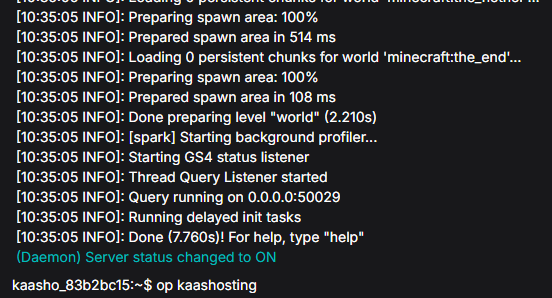
Done! The player now has operator permissions on the Minecraft server.
Granting OP permissions in-game
If you already have OP permissions, you can give OP to other players in-game.
Join your Minecraft server.
Type the following command and press Enter:
/op <minecraft_name>
Replace<minecraft_name>with the Minecraft username of the player you want to make OP. Do not include the<or>.
For example, to make the userkaashostingOP, the command would be:/op kaashosting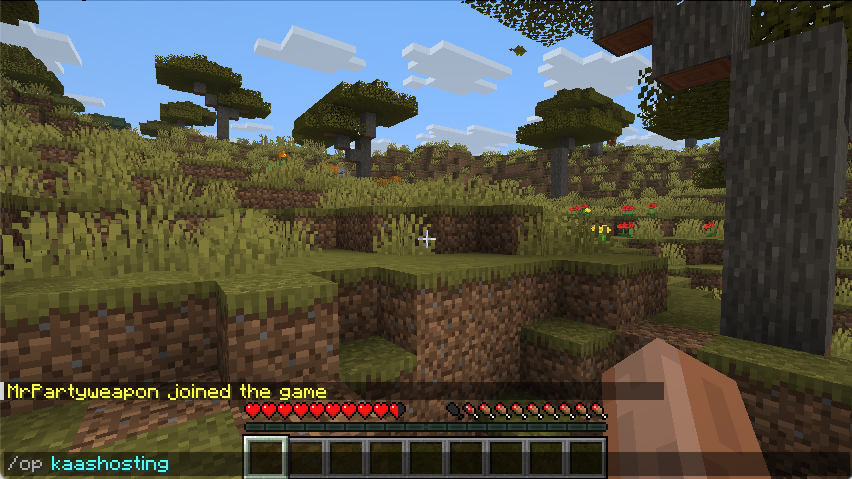
All set! The player now has OP permissions on the server.
Removing OP permissions
To remove a player’s OP permissions, use the opposite command: deop.
For example, to remove OP permissions in-game from the player kaashosting, use: /deop kaashosting.
If you want to use the deop command in the console, do not add a / before the command.